DIG 1109: image1 - Digital Imaging Fundamentals I

- Study principles and psychology of the Mac OSX, digital photography and image manipulation. Emphasis is on raster based, layered software. Effective techniques and presentation are demonstrated.
- This course covers digital image manipulation, editing and file management techniques using industry software.
- Observe an introduction to personal computers, the Macintosh Operating System and peripheral devices as graphic production tools for design, photography and digital media.
- Define and explain elementary computer terms such as hardware, software, and operating system and identify major computer components; CPU, hard drive, mouse, keyboard, monitor and input/output devices.
- Define and use the Macintosh operating system features, controls and commands to load and run software packages, create folders and documents, format disks, create directories, delete, move, copy and save files, copy disks and navigate the desktop.
- Use basic paint, image editing and text software tools; demonstrate the differences between pixel-based and vector-based files.
- Set Preferences as needed; demonstrate knowledge of production tools, including rulers, guides, grids, and the measure tool.
- Define basic file formats, file management, storage and retrieval, import and export of files and compression ratios in a bit map application.
- Demonstrate knowledge of image navigation tools and techniques.
- Demonstrate by project the use of input device (scanner and digital camera) techniques and controls for color, line, film originals, and captured originals.
- Demonstrate selection skills using appropriate mouse/menu/keyboard commands.
- Identify and demonstrate use of color palettes and color tools to adjust color, tone, and contrast of digital image files.
- Use image management tools and techniques to modify and manipulate images.
- Demonstrate knowledge of the history palette and history brushes.
- Define channels and color models used in an image manipulation application.
- Use postscript and other printer/proofing devices to output for print and display.
- While ADOBE Acrobat, ADOBE Bridge, ADOBE Illustrator, ADOBE InDesign and ADOBE Photoshop software (or any other application) may be used, this is a PATHTM and STORY class focused most on D3SIGNTM.
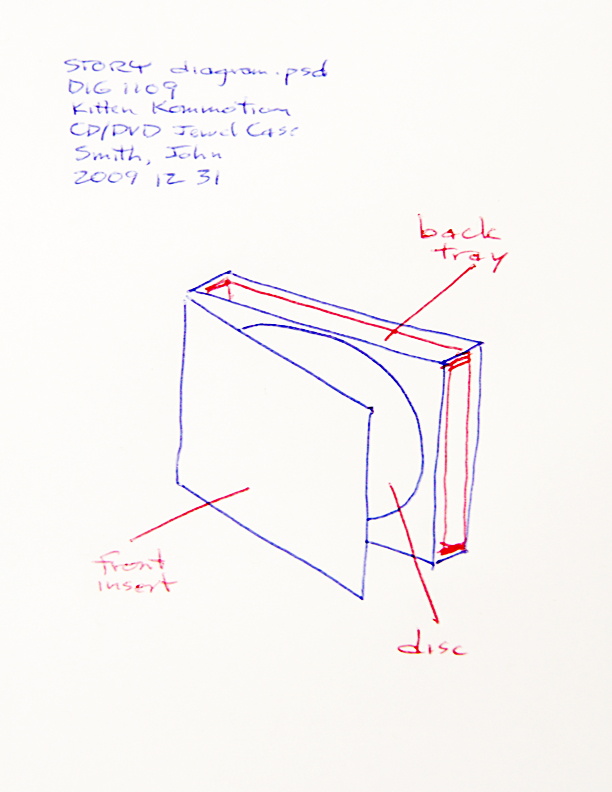
- Project: In the process of originating, creating and executing a standard CD/DVD jewel case design with three specific component parts, learn a software application, the interface, tools, techniques and the basic principles of digital imaging.
- The three component parts are:
- 1. Front insert/cover
- 2. Back tray/cover
- 3. Interior disc label
- Throughout the lifecycle of this project, consider each piece with the appropriate labels, markings, consistent typography, credits, UPC symbols, etc..
- Ensure continuity in appearance across all three components.
- (They should not appear disparate; in other words, they should appear as part of a matching set).
- Some examples submitted in the past:
- To Be Filed
- To Be Filed
- To Be Filed
- To Be Filed
- To Be Filed
- To Be Filed
- STORY due:
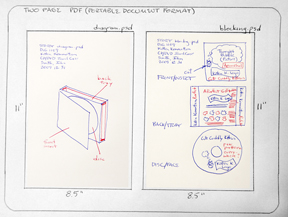
- Through the process of creating both a Diagram page and a Blocking page, communicate, give and receive critical review toward preliminary conceptual, aesthetic and visual considerations of a project.
- Example PDF Due (Click to Download Example Version):
- Example Diagram (Click to Show Large Version):
- Example Blocking (Click to Show Large Version):
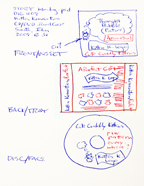
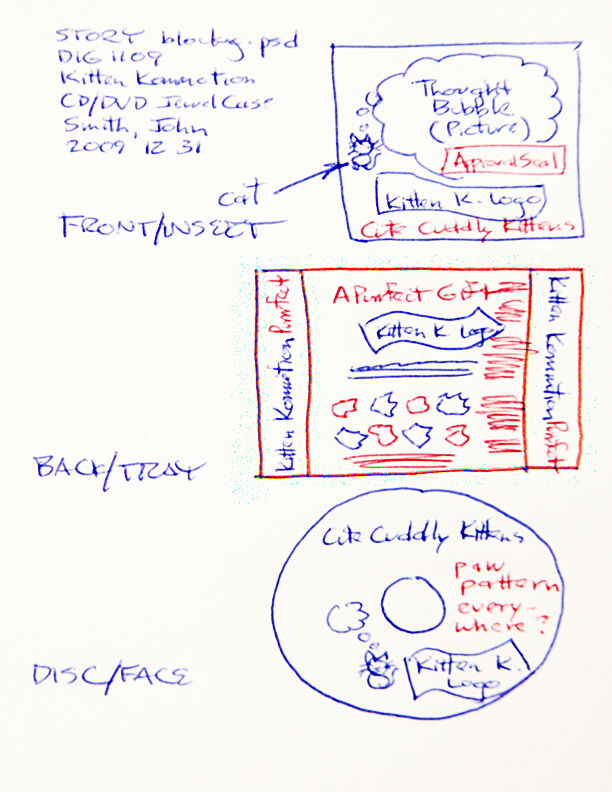
- Draw three layout blocks, each proportionate in size and equally spaced.
- Correlate each block with headings, "Insert" (Front), "Tray" (Back) and "Disc" (CD/DVD Label).
- Illustrate and visualize a distinct layout for each respective print piece (consider for each print piece a distinct layout for the "front" (title, cover), "back" (media content, UPC, copyright)" or "disc" (circular, dimensioned center hole, disc).
- Some examples submitted in the past:
- To Be Filed
- To Be Filed
- To Be Filed
- To Be Filed
- To Be Filed
- To Be Filed
- Some example questions presented in the past:
- The MIDTERM focuses on one of the most important tools in the Digital Media and Creative Design fields.
- While less than 5 percent of the market, the MAC is nearly 90 percent utilized in Advertising and Marketing Agencies, Design Firms, Academic institutions (among others related to Video, Print, Illustration and Photography).
- Especially since the relevance of both the iPhone and iPod within consumer markets, the MAC becomes an increasingly important tool.
- If you are primarily a PC user, use GOOGLE search, contact a friend or colleague with a MAC, or reference materials at your local book store.
- 1. The device that stores large amounts of permanent information within the computer itself?
- 2. How do you launch an application from the dock?
- 3. If you lose a file on the computer, what’s the best way to find it?
- 4. The Minimizer Button?
- 5. Which of the following is not an input device?
- 6. Your computer stops responding. In Order to Force Quit, you must type:
- 7. In order to Save a File, but simultaneously knowing precisely what it’s named and the location and directory/folder it’s going, use:
- 8. What are the “three” views or ways to see contents of a Window?
- 9. If you wanted to customize a number of features on your computer, such as, your display, desktop, or mouse settings, you would go to:
- 10. Which of the following are examples of Modifier Keys?
- 11. The modifier key (CMD or Command) used for Edit Cut, Edit Copy and Edit Paste combine with which letters?
- 12. When a window is open, How can you tell there’s more information that’s not visible?
- 13. Of the four options in the Apple Menu, which is the only one that turns off the power?
- 14. What’s indicated if the Trash Icon appears to have crumpled paper?
- 15. Temporary memory used to store your work while processing information with the power turned on, is:
- 16. What are the little pictures all over your desktop called?
- 17. The icon strip across the bottom of the screen is referred to as?
- 18. The bar always seen across the top of your screen is?
- 19. How do you eject a CD from a Mac?
- 20. What is the keyboard shortcut to close all of your finder windows at once?
- 21. How could you arrange files in a window to be in alphabetical order?
- 22. .jpg, .rtf, .psd, .doc are examples of what?
- 23. True or False: An object placed in the Trash is permanently deleted from your system?
- 24. True or False: QUIT and FORCE QUIT both do the same thing?
- 25. How would you locate a program NOT listed on the Dock?
- Export the portfolio as images and text within a *.pdf and submit according to the File Submit Policy.
- Example PDF Due (Click to Download Example Version):
- This first PDF example presents what is expected to be placed into the PROTO DropBox.
- A PDF file is reasonable in size (very small) having utilized the format's compression while packaging three PSD files into a single document.
- This document is set at low resolution for "screen viewing" an acceptable setting to share projects with clients:
- DIG1109_image1_SmithJohn_6_PROTO_20091231.pdf (1.1 MB)
- These are the three Photoshop *.psd documents which were used to generate the above PDF file.
- Because of their shear size each presents challenges and limitations to share with clients (Three individual flattened *.jpg files will reduce the amount of challenges and limitations in sharing a PROTO with clients, though still are not as convenient as Adobe's single-file PDF format solution):
- DIG1109_image1_SmithJohn_6_PROTO_20091231_Front.psd (17.9 MB)
- DIG1109_image1_SmithJohn_6_PROTO_20091231_Back.psd (25.0 MB)
- DIG1109_image1_SmithJohn_6_PROTO_20091231_Disc.psd (10.9 MB)
- Some examples submitted in the past:
- To Be Filed
- To Be Filed
- To Be Filed
- This first PDF example presents what is expected to be placed into the PROOF Dropbox.
- Example PDF Due (Click to Download Example Version)
- A PDF file is reasonable in size (very small) having utilized the format's compression while packaging three PSD files into a single document.
- This document is set at low resolution for "screen viewing only; an acceptable setting to share projects with clients:
- DIG1109_image1_SmithJohn_7_PROOF_20091231.pdf (0.5 MB)
- The following layered Photoshop *.psd documents were used to generate the above PDF file.
- Each native Photoshop file's large document size often presents challenges and limitations in sharing them with clients.
- Flattened *.jpg files will reduce the amount of challenges and limitations in sharing a PROOF with clients, though delivering three *.jpg files is still not as convenient as delivering a single-file PDF:
- DIG1109_image1_SmithJohn_7_PROOF_20091231_Front.jpg (2.0 MB)
- DIG1109_image1_SmithJohn_7_PROOF_20091231_Front.psd (24.7 MB)
- DIG1109_image1_SmithJohn_7_PROOF_20091231_Back.jpg (2.3 MB
- DIG1109_image1_SmithJohn_7_PROOF_20091231_Back.psd (32.6 MB)
- DIG1109_image1_SmithJohn_7_PROOF_20091231_Disc.jpg (2.8 MB
- DIG1109_image1_SmithJohn_7_PROOF_20091231_Disc.psd (17.1 MB)
- Some examples submitted in the past:
- To Be Filed
- To Be Filed
- To Be Filed
- To Be Filed
- Some examples submitted in the past:
- To Be Filed
- To Be Filed
- To Be Filed
- To Be Filed
- Some examples submitted in the past:
- To Be Filed
- To Be Filed
- To Be Filed
KICKOFF
|
|
|